To SSH into a server without opening port 22 to the internet, give the server a way to be reached that doesn't involve a public listening port: a bastion host you already maintain, a reverse tunnel the server opens outward, or a private overlay network such as a mesh VPN. The last option also works when the server has no public IP at all, for example behind CGNAT.
Why not just open port 22?
Any address with TCP 22 open is found and tried by automated scanners, typically within minutes of going online. Key-only authentication and tools like fail2ban make a break-in unlikely, but you still carry:
- a constant stream of login attempts in your logs;
- exposure to the next pre-authentication vulnerability in the SSH server;
- a dependency on a port forward or public IP, which you may not have (see what is CGNAT?).
Moving SSH to another port reduces the noise, not the exposure.
The options
Bastion (jump) host. One hardened, public machine runs SSH; everything else only accepts SSH from it. ssh -J bastion.example.com admin@10.0.0.5 hops through. It shrinks the public surface to one host, but that host is still public and still needs the network behind it to be reachable from it.
Reverse SSH tunnel. The server opens an outbound tunnel to a machine with a public address (ssh -R 2222:localhost:22 user@vps), and you connect to the VPS's port 2222. No inbound port on the server's network, but the VPS becomes the public entry point, and you need something to keep the tunnel alive.
Mesh VPN. Both your laptop and the server run a client that connects outbound and joins a private network. You SSH to the server's private address. Nothing listens on the public internet on either side. How to access a server behind NAT compares these in more detail.
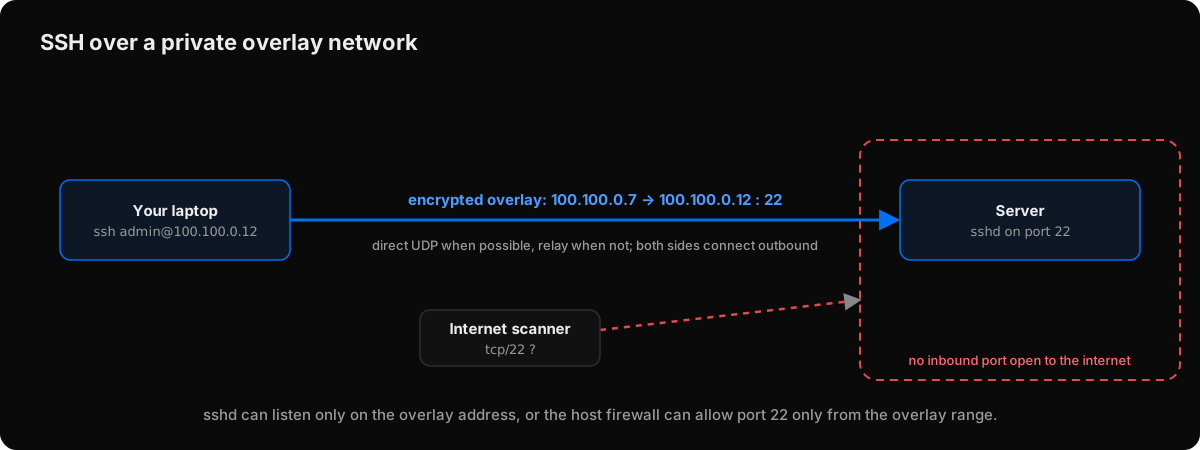 SSH over a private overlay: the server's sshd is only reachable from devices on the network.
Set it up with Peerlify
Peerlify is a mesh VPN. SSH needs no special support: Peerlify carries the IPv4 traffic, and you use your normal ssh client and keys.
1. Install the client on the server and sign it in. On a Linux server with systemd:
curl -fsSL https://pkgs.peerlify.net/install.sh | sh
peerlify login --auth-key=<key-from-the-console>Create the auth key in the console under Settings → Keys, and give it the auto-tag tag:server so every server enrolled with it is tagged (the rule below uses that tag). See Add servers with auth keys.
2. Install the client on your laptop and sign in with peerlify login (or the tray/menu-bar app on Windows and macOS).
3. Find the server's address and connect.
peerlify list peersweb-01.k3x9q2m7pa.peerlify.net (100.100.0.12)ssh admin@100.100.0.12From Windows and macOS, the short name works too: ssh admin@web-01. On Linux, use the address; Peerlify doesn't add names to the hosts file there.
The connection works even if both machines are behind NAT. Traffic goes directly between them when the networks allow it, and through an encrypted Peerlify relay when they don't.
Lock SSH down to the private network
Once SSH works over Peerlify, close it everywhere else. Two layers do that.
Peerlify access rules decide who can reach port 22 at all. A new network allows all traffic between devices; replace that with rules such as the one below. It uses a group, group:admins, which you define in the policy's groups section with the members' emails, and the tag:server tag from step 1. A policy that references an undefined group is rejected when you save it, and a server without the tag matches nothing, so check both before you remove the allow-all rule.
{
  "name": "admins-ssh-to-servers",
  "action": "accept",
  "source": ["group:admins"],
  "destination": ["tag:server"],
  "ports": ["22"],
  "protocol": ["tcp"]
}The receiving server enforces the rule, so other members' devices can't open a connection to port 22 on it. See Write your first rule.
The server itself should stop accepting SSH from the internet. Either:
-
remove any port forward or cloud security-group rule for port 22, and with
ufwallow SSH only on the Peerlify interface. Find it by looking for the server's Peerlify address (in100.100.0.0/16by default; check yours in the console):shellip -o -4 addr show | grep ' 100\.100\.' sudo ufw allow in on <peerlify-interface> to any port 22 proto tcpthen remove the general
allow 22/OpenSSHrule if you had one. Tie the rule to the interface rather than only to the address range: Peerlify's default range sits inside100.64.0.0/10, which carriers also use for CGNAT, so a source-range rule alone could admit hosts on the server's physical network; or -
set
ListenAddressinsshd_configto the server's Peerlify address. Be aware that sshd then fails to bind if it starts before the Peerlify adapter is up, so the firewall approach is usually more robust.
Keep a second way in (a cloud provider console, out-of-band access) while you make the change, in case you lock yourself out.
Summary
- You don't need port 22 on the internet to use SSH remotely.
- A mesh VPN gives each server a private address you can reach from anywhere, including from behind NAT and CGNAT.
- Use access rules to decide who can reach SSH, and the server's firewall to make sure nothing else can.
For other protocols the pattern is the same: remote desktop, databases and internal web apps all work over the private address. How to securely access a remote server covers the broader picture.