What is a mesh VPN?
A mesh VPN is a private network in which devices connect to each other directly, instead of sending all traffic through one central VPN server. A coordination service keeps track of which devices belong to the network and what their keys are. The traffic itself flows between devices over encrypted tunnels, and passes through a relay only when a direct path can’t be made.
The result behaves like one flat private network: every device has a stable private address, and you reach a server at that address from wherever you are, whether it sits in a data center, a cloud account, an office or a home lab.
How mesh networking works
A traditional remote-access VPN is hub and spoke: clients connect to a gateway, and the gateway routes them into the network behind it. A mesh VPN removes the hub from the data path. Each participating device, called a peer or node, runs a client that:
- creates a virtual network interface with an address on a private overlay network, a network layered on top of whatever networks the devices are really on;
- learns from a coordination service which other peers exist, their addresses and their public keys;
- sets up an encrypted tunnel to each peer it talks to, using those keys;
- tries to reach each peer directly, using NAT traversal techniques, and falls back to a relay when that fails.
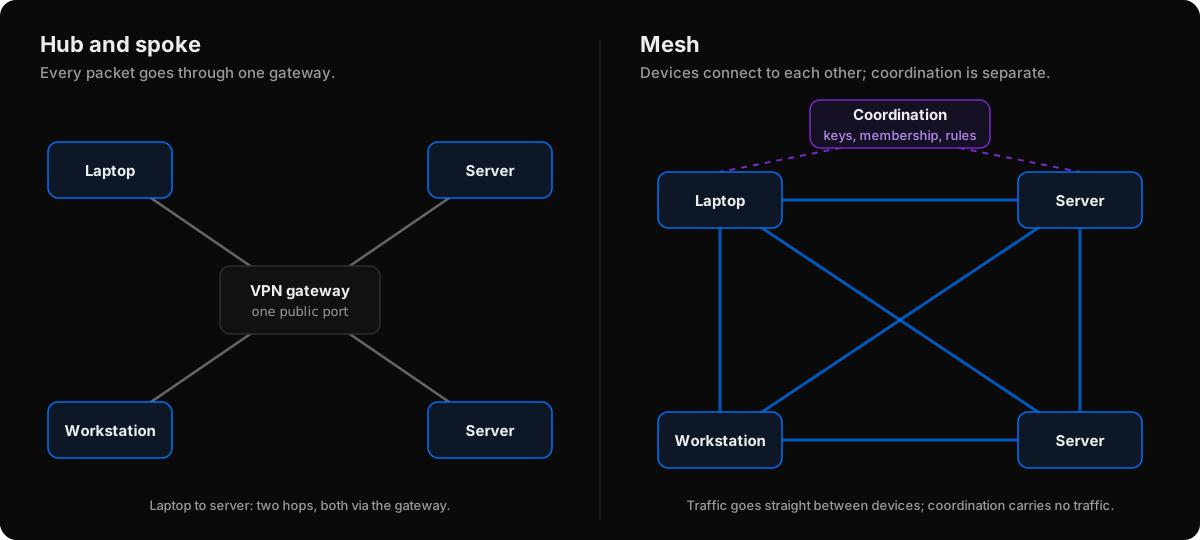
Hub-and-spoke and mesh compared
These are properties of the two architectures in general, not of any particular product.
| Hub-and-spoke VPN | Mesh VPN | |
|---|---|---|
| Traffic path | Every packet goes through the gateway, even between two of your own machines. | Packets go straight between the two devices when the network allows it; otherwise through a relay. |
| Inbound exposure | The gateway listens on a public port that anyone can reach and probe. | Devices make outbound connections; nothing needs a port forward. |
| Latency | Set by the distance to the gateway. | Set by the distance between the two devices (or to the relay, when relayed). |
| Failure domain | If the gateway is down, everything behind it is unreachable. | Existing peer lists keep working if the coordinator is briefly unreachable. |
| Access granularity | Often by subnet: once connected, a user can reach what the gateway routes to. | Per device: each device has an identity, and rules name devices, users or tags. |
| What you install | A client on each user device, and the gateway itself. | A client on every device that takes part, including servers. |
The trade-off is real: a mesh needs the client on every device that takes part, while a gateway can front machines that run nothing at all. For a deeper walk-through, read how mesh VPNs work.
How Peerlify works
Peerlify has five parts:
- The client on each device: a background service that owns a virtual network adapter and encrypts and sends your traffic, plus the
peerlifycommand-line tool. Windows and macOS also get a desktop app. - The console at
web.peerlify.com, where you manage networks, members, devices, access rules and settings. - Sign-in at
login.peerlify.com, with GitHub, Google, Microsoft, Apple or your own OpenID Connect provider. - The control plane, run by Peerlify, which tracks which devices belong to which network and sends each device its peers and rules.
- Relays, run by Peerlify, which forward encrypted traffic between devices that can’t reach each other directly.
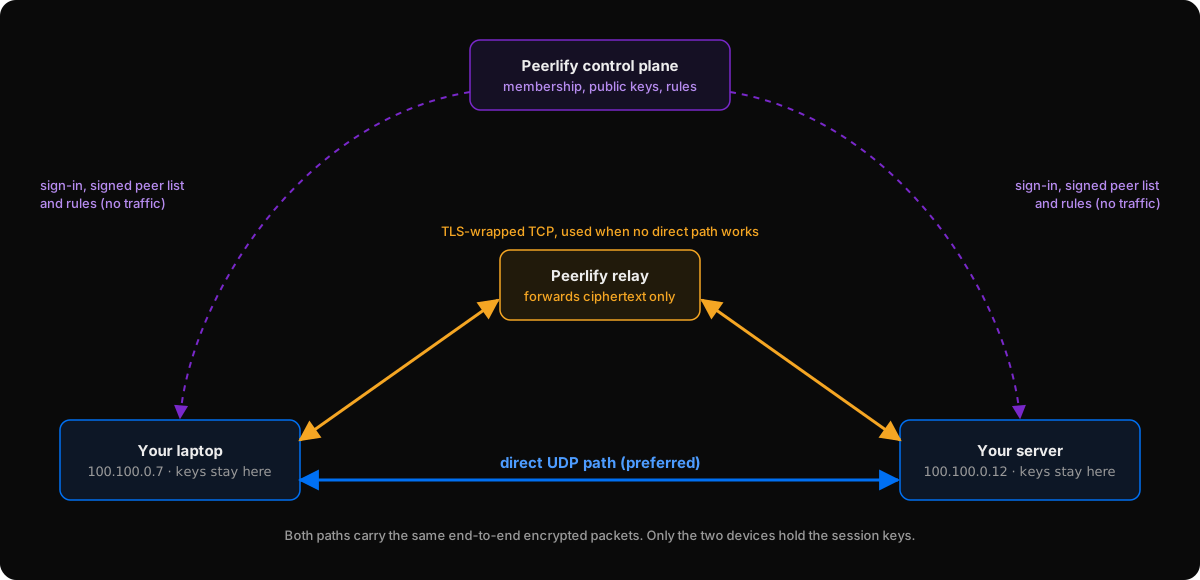
When a device joins
- It creates its own keys. On first start the service generates two key pairs on the device: an Ed25519 key that proves the device’s identity to the control plane, and a P-256 key for encrypted sessions with other devices. Private keys never leave the device.
- Someone signs it in.
peerlify loginprints a link that a member opens in a browser. Servers can enroll without a browser using an auth key:peerlify login --auth-key=<key>. - The control plane admits it. The device gets an address from the network’s subnet (
100.100.0.0/16by default) and a name. If the network requires device approval, it waits for an admin. - It receives its peer list. The control plane streams the other devices’ names, addresses, public keys and relays, plus the access rules that apply, and keeps it current every few seconds. Full snapshots are signed with the control plane’s key.
When an application connects
- An application, say
ssh, sends a packet to100.100.0.12. The operating system routes it to the Peerlify adapter. - The service looks up which peer owns that address and, if needed, sets up an encrypted session with it.
- The packet is encrypted and sent, directly or through a relay.
- The receiving device decrypts it, checks that the source address belongs to the device it came from, checks its access rules, and delivers it.
The docs page How Peerlify works goes through each step in more detail.
Direct connections
A direct connection is UDP traffic straight between two devices, through whatever NATs and firewalls sit between them. Getting one through two NATs is called NAT traversal; the common technique is UDP hole punching, where both sides send packets toward each other at the same time so each NAT opens a mapping for the other.
In Peerlify
The first packets to a peer go through a relay, so a connection works within moments. In parallel, the two devices exchange the addresses they might be reachable at: a global IPv6 address, LAN addresses, a public address mapped by the router through UPnP, NAT-PMP or PCP, and the public address seen by the relay’s STUN service on UDP 3478.
Both devices then probe each other’s addresses every second, for the first 30 seconds and after that for as long as traffic keeps flowing. When a probe is answered, traffic moves to the direct path without dropping the session. Keep-alives run every 5 seconds; if they go unanswered for 20 seconds, traffic falls back to the relay and the search starts again.
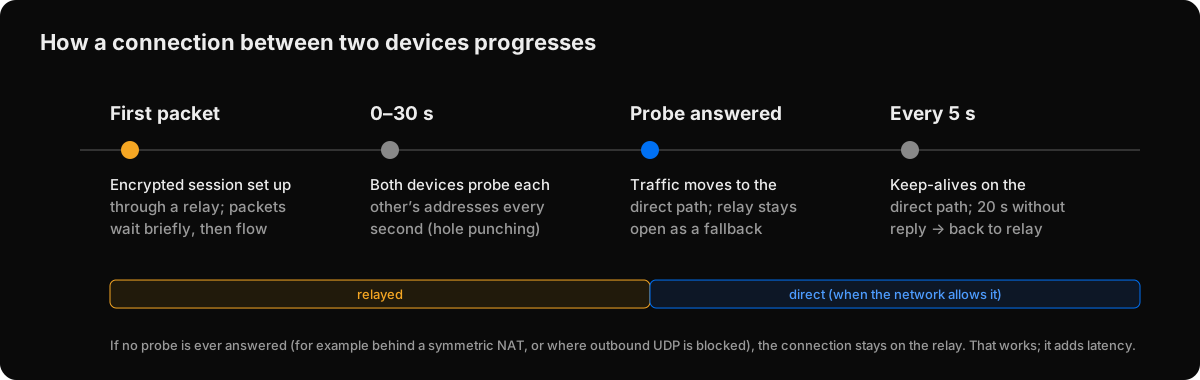
To see which path each peer uses, run peerlify list peers -s: p2p means direct, ERPFServer means relayed. peerlify ping <peer> --until-direct keeps pinging until a direct path is found. The technique is explained step by step in how NAT traversal works.
NAT and CGNAT
NAT (network address translation) lets many devices share one public IP address. It also means nothing on the internet can start a connection to a device behind it unless someone sets up a port forward. CGNAT (carrier-grade NAT) adds a second NAT run by the internet provider, common on mobile and many fixed-line networks. Behind CGNAT, a port forward on your own router doesn’t help, because the provider’s NAT is not yours to configure.
In Peerlify
Every Peerlify connection starts outbound, so a device behind NAT or CGNAT can join the network and reach its peers without any port forward. Whether a given pair gets a direct path depends on the NATs on both sides:
- NATs that keep the same public port for every destination usually let hole punching through.
- A symmetric NAT, which picks a new public port per destination, defeats it. Peerlify doesn’t currently traverse these, so a pair with one side behind such a NAT stays on a relay.
- Networks that block outbound UDP use the relay for everything.
- Networks where all traffic must go through an HTTP proxy can’t carry Peerlify traffic.
More on both topics: what CGNAT is and how to access a server behind NAT.
When traffic is relayed
A relay is a server both devices can reach that forwards packets between them. In a mesh VPN it is a fallback route, not a gateway: it only sees traffic that is already encrypted end to end.
In Peerlify
Devices connect to Peerlify relays over TCP, trying port 5879, then 443, then 80. The connection is wrapped in TLS so firewalls treat it like web traffic; that TLS layer is not what protects your data. Each device picks a home relay by measuring connection times to the available relays every 25 seconds, and other devices reach it through that relay.
A relay sees the public IP addresses of the devices using it, their public keys, which device each packet is from and to, and packet sizes and timing. It can’t read or alter the traffic, or forge packets from a device, because it never holds the session keys. It can drop or delay packets.
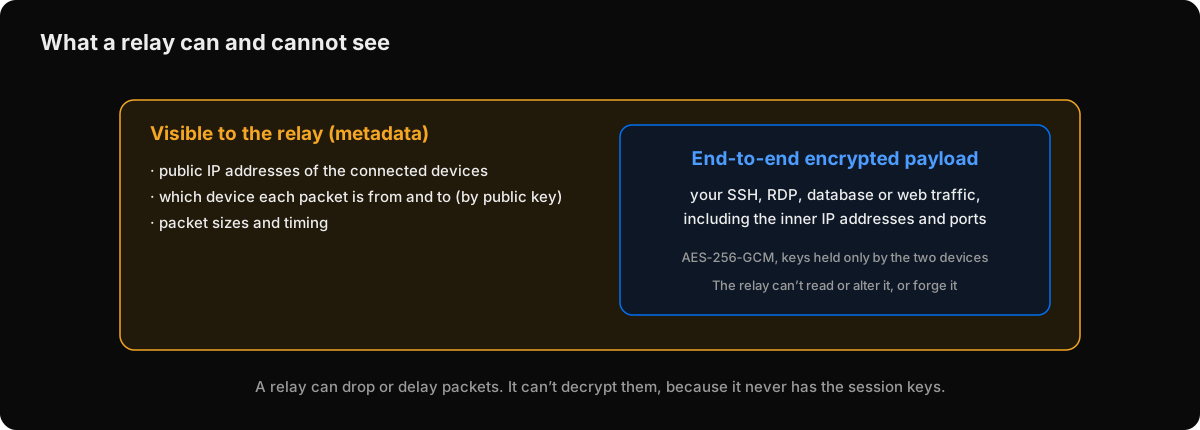
Security model
In Peerlify
- Keys stay on the device. Each device creates its own key pairs; only public keys are sent to the control plane.
- End-to-end encryption. Each pair of devices derives its own session keys in a handshake that follows the Noise IK pattern (four P-256 Diffie–Hellman operations, HKDF-SHA256). It is Peerlify’s own construction, not an implementation of the Noise Protocol Framework. Packets use AES-256-GCM with a separate key per direction, and replayed packets are rejected.
- The control plane is the trust anchor. Devices only set up sessions with peers whose public keys the control plane lists for the network. Someone who controlled the control plane could add devices to your network, so it is part of what you trust.
- Access rules are enforced by the receiving device. Rules name users, groups, roles, tags and devices, down to protocol and port. A new network starts with an allow-all rule that you should replace.
- Removal is fast. When you remove a device, online peers drop it from their peer list within seconds, typically under ten. Removing a person from your identity provider alone does not end a device session that is already enrolled.
The full model, including what each component can see, is in the security model and on the security page. For the general concepts, read how encrypted remote access works.
Remote-access use cases
Peerlify carries IPv4 traffic between devices that run the client, so any TCP or UDP service works over it with the tools you already use:
- SSH to servers without exposing port 22:
ssh admin@100.100.0.12. See SSH without port forwarding. - Remote desktop to Windows machines on their Peerlify address, with no RDP port on the internet.
- Private databases such as PostgreSQL on 5432, with a rule that allows only the people who need it.
- Internal web apps and admin panels, reached at
http://100.100.0.12:8080or, on Windows and macOS, by device name. - Servers across clouds and offices on one private network. See building a private network between servers.
- Home labs behind CGNAT or a router you can’t configure.
- A fixed public IP for a laptop, by sending its internet traffic through an exit point (Windows and Linux devices can act as one).
- Remote support: view or control a Windows or Mac desktop with consent. See remote support.
The remote access use case shows how teams put these together, and how to securely access a remote server compares the approaches.
What Peerlify does not do
- No subnet routing. Every device you want to reach needs the client; Peerlify can’t route to other machines on a device’s LAN.
- IPv4 inside the network. Devices can use IPv6 underneath for direct paths, but the private network itself carries IPv4 only.
- Desktop and server operating systems only. Windows, macOS and Linux; there are no iOS or Android clients.
- Names on Windows and macOS. Device names are written to the hosts file on Windows and macOS; on Linux, use the device’s Peerlify IP address.
Getting started
- Sign in at
login.peerlify.comwith GitHub, Google, Microsoft or Apple. A network is created for you on the free Personal plan. - Install the client from the downloads page. On Linux:
curl -fsSL https://pkgs.peerlify.net/install.sh | sh
- Sign the device in and approve it in your browser:
peerlify login
- Repeat on a second device, then check the connection:
peerlify list peers
peerlify ping 100.100.0.2 --until-direct
- Write your first access rule to replace the default allow-all policy. For servers, use auth keys instead of a browser sign-in.
The quickstart walks through every step, with the output to expect at each one.